How to Publish an IP Camera RTSP Stream to Your Website
This tutorial covers publishing IP camera streams to website pages using Broadcast Live Video. Browsers cannot play RTSP directly — the VideoWhisper Server handles conversion to DASH/HLS for browser-native playback.
Requirements
– A site running Broadcast Live Video with VideoWhisper Server (included in site2stream.com plans)
– An IP camera with an accessible RTSP address
– Network access from the streaming server to the camera’s RTSP port (usually 554)
Step 1: Set Up an IP Camera Channel
- Log in and go to Broadcast Live → Manage Channels
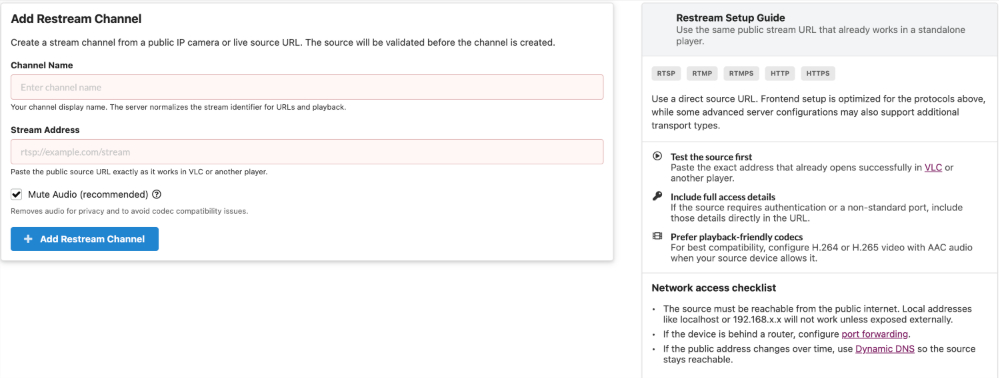
- Click Add Channel → select IP Camera / Restream as the channel type
- Give the channel a name and save
Step 2: Enter the Camera’s RTSP Address
In the channel setup form, enter your camera’s RTSP stream URL: Supported formats:
– rtsp://username:password@192.168.1.100:554/stream1
– rtmp://your-source/live/streamkey
– https://your-source/stream.m3u8 (HLS input)
– udp://239.0.0.1:1234 (multicast) Tips:
– Test the RTSP URL in VLC first to confirm it works before entering it here
– H.264 video + AAC audio is recommended for best compatibility
– If the camera requires a username/password, include them in the URL
– If your camera is behind a router, port-forward port 554 to the camera’s local IP After entering the URL and saving, the server will attempt to connect. If successful, a live snapshot will be displayed.
Step 3: Configure Access Control (Optional)
By default, the channel is public. To restrict access: – Members only: Set the channel to require login
– Specific users: Add allowed users to the channel access list
– Paid access: Configure myCRED pay-per-channel pricing This is the key feature for use cases like Airbnb guest access, pet hotel owner access, and daycare parent portals — each channel’s access list controls exactly who can see that camera.
Step 4: View the Live Channel
The channel page uses the VideoWhisper Restream Player to display the stream as MPEG-DASH or HLS. Viewers see the live feed in any browser with no plugin or app required. The channel listing page shows live/offline status based on stream health and updates thumbnails automatically.
Troubleshooting
– Stream not connecting: Verify the RTSP URL works in VLC from the server’s network location
– No public camera IP: Configure port forwarding on your router, or set up Dynamic DNS if your ISP doesn’t provide a static IP
– Non-standard port: Ensure the port is open in your firewall and router
– Wrong codec: Re-configure the camera to output H.264 + AAC if possible