How to Create a Scheduled Live Streaming Channel with a Video Playlist

How to Create a Scheduled Live Streaming Channel with a Video Playlist

Scheduled channels let you run a 24/7 stream by programming a weekly schedule of videos and live broadcast windows. This tutorial walks through setting one up.

Requirements

– A site running Broadcast Live Video with VideoWhisper Server (included in site2stream.com plans)

– A channel with roomInterface = dash (Schedule/DASH type)

– Video files to add to the playlist (MP4 recommended)

Step 1: Create or Configure a Scheduled Channel

  1. Go to Broadcast LiveManage Channels
  1. Create a new channel, or edit an existing one
  1. Set the channel type to Schedule / DASH

Step 2: Upload Videos to the Library

From the channel management page, go to the Playlist / Videos section:

  1. Click Upload Videos to add MP4 files from your computer
  1. Fill in the title, description, and tags before uploading (these appear on the VOD archive)
  1. Drag-and-drop multiple files to the upload zone to batch-upload

Alternatively, import archived recordings from past live broadcasts — these are automatically available in the video library.

Step 3: Build the Schedule

Open the Schedule Editor for the channel. The editor shows a weekly timeline grid.

  1. Click a time slot to add a scheduled item
  1. Choose between:

Video — select a video from your library to play at that time

Live — a live broadcast window; when a broadcaster goes live during this slot, the channel switches to the live feed automatically

  1. Arrange items by dragging them on the timeline
  1. Set the Playlist Status to Active when done

Step 4: Viewers Watch

The channel page displays the MPEG-DASH player. It plays whichever content is scheduled for the current time — either a video from the playlist or a live broadcast.

Viewers on any device (desktop, mobile, tablet) see the stream in their browser with no plugin required.

Tips

Live override: If no live broadcast is active during a Live slot, the schedule falls back to the previous video in the playlist automatically

Repeat schedule: The weekly schedule loops automatically — configure it once and it runs indefinitely

Import archives: After a live broadcast ends, import it into the video library and add it to future schedule slots

Video Share VOD: For larger video libraries, the Video Share VOD plugin integrates with the schedule playlist
See Also

Scheduled Channels Scenario →

Get a Turnkey Hosted Site →

How to Broadcast with OBS Studio or a Mobile RTMP Encoder

How to Broadcast with OBS Studio or a Mobile RTMP Encoder

The HTML5 Videochat interface accepts RTMP streams from any encoder — OBS Studio on desktop, Larix Broadcaster on mobile, or any other RTMP-compatible app. This enables professional-quality streaming from dedicated hardware or software without being limited to browser-only broadcasting.

Requirements

– A site running Broadcast Live Video with a VideoWhisper Server or Wowza SE connection

– A channel configured with roomInterface = html5app (HTML5 Videochat)

– OBS Studio (PC/Mac/Linux) or Larix Broadcaster (iOS/Android)

Getting Your Stream Settings

  1. Log in to your site and go to your channel page
  1. From the channel menu, open External Encoders (or Broadcast → External Apps)
  1. Copy the Server URL and Stream Key shown for your channel

These two values are all you need to configure any RTMP encoder.

Setting Up OBS Studio

  1. Open OBS → SettingsStream tab
  1. Set Service to Custom
  1. Paste your Server URL into the Server field
  1. Paste your Stream Key into the Stream Key field
  1. Click Apply and OK
  1. Click Start Streaming

Recommended OBS settings:

– Video bitrate: 1000–4000 kbps depending on resolution

– Audio bitrate: 128–192 kbps

– Resolution: 1280×720 or 1920×1080

– Encoder: x264 (software) or hardware encoder if available

Setting Up Larix Broadcaster (Mobile)

Larix Broadcaster is a free, professional RTMP app for iOS and Android — the recommended replacement for the discontinued Wowza GoCoder.

  1. Download Larix Broadcaster from the App Store or Google Play
  1. Open SettingsConnections → tap + to add a new connection
  1. Enter a name (e.g., your site name)
  1. Set URL to your Server URL + / + your Stream Key (combined as one RTMP URL, e.g., rtmp://your-server/live/streamkey)
  1. Tap Save and return to the main screen
  1. Tap the record button to start streaming

Viewers Watch via HLS/DASH

Once your encoder starts sending RTMP, the channel automatically becomes live. Viewers on your site watch via:

HLS — iOS, Android, and all mobile browsers

MPEG-DASH — desktop browsers with adaptive bitrate

WebRTC — if available, for lowest latency playback

Chat is active alongside the stream for real-time viewer interaction.

See Also

Videochat & Tipping Platform →

Get a Turnkey Hosted Site →

How to Publish an IP Camera RTSP Stream to Your Website

How to Publish an IP Camera RTSP Stream to Your Website

This tutorial covers publishing IP camera streams to website pages using Broadcast Live Video. Browsers cannot play RTSP directly — the VideoWhisper Server handles conversion to DASH/HLS for browser-native playback.

Requirements

– A site running Broadcast Live Video with VideoWhisper Server (included in site2stream.com plans)

– An IP camera with an accessible RTSP address

– Network access from the streaming server to the camera’s RTSP port (usually 554)

Step 1: Set Up an IP Camera Channel

  1. Log in and go to Broadcast LiveManage Channels
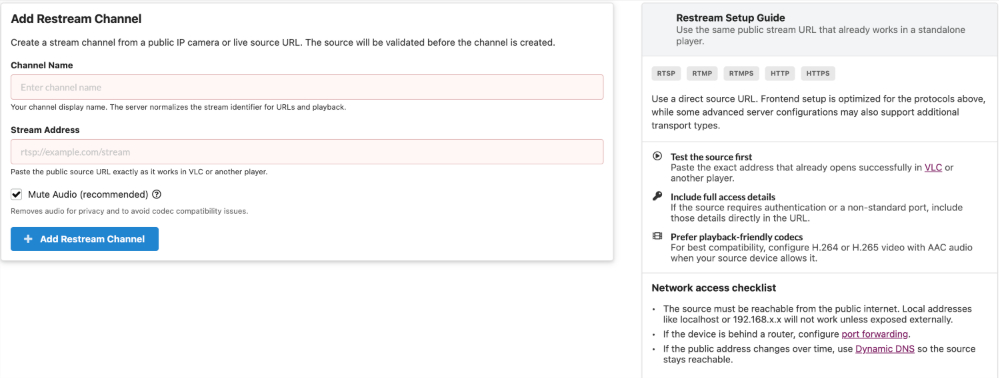
  1. Click Add Channel → select IP Camera / Restream as the channel type
  1. Give the channel a name and save

Step 2: Enter the Camera’s RTSP Address

In the channel setup form, enter your camera’s RTSP stream URL:

Supported formats:

rtsp://username:password@192.168.1.100:554/stream1

rtmp://your-source/live/streamkey

https://your-source/stream.m3u8 (HLS input)

udp://239.0.0.1:1234 (multicast)

Tips:

– Test the RTSP URL in VLC first to confirm it works before entering it here

– H.264 video + AAC audio is recommended for best compatibility

– If the camera requires a username/password, include them in the URL

– If your camera is behind a router, port-forward port 554 to the camera’s local IP

After entering the URL and saving, the server will attempt to connect. If successful, a live snapshot will be displayed.

Step 3: Configure Access Control (Optional)

By default, the channel is public. To restrict access:

Members only: Set the channel to require login

Specific users: Add allowed users to the channel access list

Paid access: Configure myCRED pay-per-channel pricing

This is the key feature for use cases like Airbnb guest access, pet hotel owner access, and daycare parent portals — each channel’s access list controls exactly who can see that camera.

Step 4: View the Live Channel

The channel page uses the VideoWhisper Restream Player to display the stream as MPEG-DASH or HLS. Viewers see the live feed in any browser with no plugin or app required.

The channel listing page shows live/offline status based on stream health and updates thumbnails automatically.

Troubleshooting

Stream not connecting: Verify the RTSP URL works in VLC from the server’s network location

No public camera IP: Configure port forwarding on your router, or set up Dynamic DNS if your ISP doesn’t provide a static IP

Non-standard port: Ensure the port is open in your firewall and router

Wrong codec: Re-configure the camera to output H.264 + AAC if possible

See Also

IP Camera Streaming Scenario →

Get a Turnkey Hosted Site →

How to Broadcast Live Video from Your Browser with WebRTC

HTML5 Broadcast using WebRTC

How to Broadcast Live Video from Your Browser with WebRTC

The Broadcast Live Video plugin includes a Webcam App — a React-based WebRTC broadcasting interface that lets you go live directly from any modern browser, with no software download required.

Requirements

– A site running Broadcast Live Video with a VideoWhisper Server connection (included in all site2stream.com plans)

– A modern browser with camera/microphone access (Chrome, Firefox, Safari, Edge)

– A channel configured with roomInterface = webcamapp

Step 1: Go to Your Channel Page

Log in to your site and navigate to the Broadcast Live page or your channel. From the channel menu, click Broadcast (or the WebRTC/Webcam App option).

The browser will request access to your camera and microphone — allow it.

Step 2: Select Devices and Go Live

The Webcam App interface shows a preview of your camera feed. Before going live:

– Select your camera from the Video source dropdown

– Select your microphone from the Audio source dropdown

– Choose your view mode: BroadcastChat (broadcast + chat), Broadcast (broadcast only), etc.

Click Go Live (or the broadcast button) to start streaming.

Step 3: Viewers Watch

From a separate browser tab or another device, open the channel page. Viewers watching via WebRTC get sub-second latency. Viewers on older devices or iOS fall back to HLS automatically.

The chat panel is visible alongside the stream for both broadcaster and viewers.

Step 4: End the Broadcast

Click Stop or close the broadcast view to end the session. The recording (if enabled) is saved to the VOD archive automatically.

Broadcasting via HTML5 Videochat (Alternative)

If your channel uses the HTML5 Videochat interface (roomInterface = html5app), WebRTC broadcasting is also available directly from that interface — alongside RTMP support. See Videochat Broadcasting → for details on using OBS or Larix Broadcaster with this interface.

See Also

Simple Live Streaming Scenario →

Videochat & Tipping Platform →

Get a Turnkey Hosted Site →